To create OS shell script based metric extension (ME), follow given steps:
1. Select Enterprise->Monitoring->Metric Extensions

2. Provide values for the metric extension properties in Create New wizard first page.

3. Provide shell scripting binary like /bin/sh, Shell Script name, Delimiter and Starts With expression as given below and Select Add button to add the shell script.

4. In this example, very simple script has been specified to explain the steps.

5. In next step of wizard, one needs to specify the output columns. As per given sample script, two columns Uptime and Users have been created here.


6. Select Credentials in next step to be used for this metric extension.

7. To test this metric extension, select Test Targets

8. Click on Run Test button to test the metric extension on Test target. You should see test output in Test Results panel.

9. Before submitting, review final definition for proposed metric extension.

10. Metric Extension is successfully created.

11. Once the metric extension is created, next step would be to save it as Deployable Draft as given below.

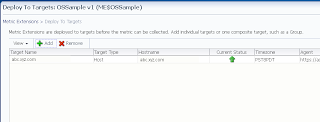
12. Once the status of metric extension shows as Deployable Draft. Select the metric extension and Deploy it to target as shown below.

13. You should see that the Metric Extension is deployed successfully.

14. After 15 min., Go to the target where this metric extension has been deployed. Select Monitoring->All Metrics. Yous should see following:

1. Select Enterprise->Monitoring->Metric Extensions


3. Provide shell scripting binary like /bin/sh, Shell Script name, Delimiter and Starts With expression as given below and Select Add button to add the shell script.

4. In this example, very simple script has been specified to explain the steps.

5. In next step of wizard, one needs to specify the output columns. As per given sample script, two columns Uptime and Users have been created here.


6. Select Credentials in next step to be used for this metric extension.

7. To test this metric extension, select Test Targets

8. Click on Run Test button to test the metric extension on Test target. You should see test output in Test Results panel.

9. Before submitting, review final definition for proposed metric extension.

10. Metric Extension is successfully created.

11. Once the metric extension is created, next step would be to save it as Deployable Draft as given below.

12. Once the status of metric extension shows as Deployable Draft. Select the metric extension and Deploy it to target as shown below.

13. You should see that the Metric Extension is deployed successfully.


